Zen Browser: Simplicity and Focus
If you’re a fan of the famous fox browser, Firefox, and want to try a version with some really cool extra features, I recommend taking a closer look at Zen Browser — a Firefox fork with some genuinely interesting capabilities that can help boost your productivity.
Zen was built with the goal of offering a minimalist, distraction-free browsing experience by cutting out the noise of notifications, trackers, and cluttered interfaces, delivering a much cleaner and more productive environment — at least for me. 😄
Here’s what my Zen Browser start page looks like (with the Momentum add-on):
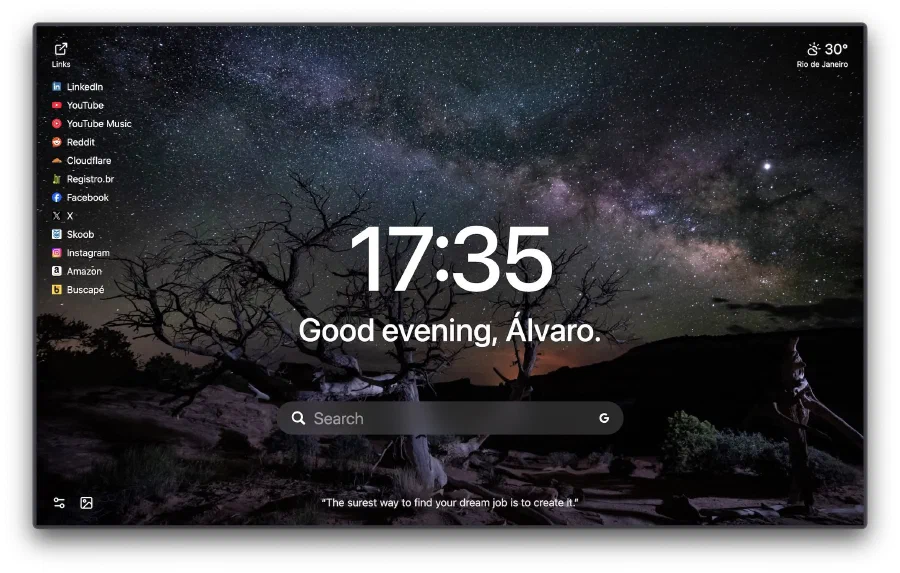
But is it worth switching your default browser? Here are a few reasons to give digital minimalism a try:
Minimalism without the fuss
Unlike traditional browsers packed with toolbars, plugins, and unwanted recommendations, Zen bets on a simplified interface. It strips out everything non-essential, letting you focus on the content that actually matters. For anyone who likes a clean, organized environment, it’s a relief for both your eyes and your mind — and for people who tend to lose focus, it’s hands down the best browser right now.
Privacy first
Zen Browser automatically blocks trackers, invasive ads, and third-party cookies — after all, it’s built on our beloved Firefox. That means you don’t need to install 15 different extensions to protect yourself. It takes a “we’re not interested in your data” approach, which is a huge differentiator in a world where every click tends to be tracked.
Fewer distractions, more productivity
You know that pop-up asking if you want to enable notifications? Or that “breaking news” suggestion that makes you lose 20 minutes reading about an albino twin kickboxing bear that learned to ride a bike? Zen Browser cuts all of that out at the root. It helps you stay focused — ideal for studying, working, or just browsing without getting sucked into the internet’s black hole of doom scrolling.
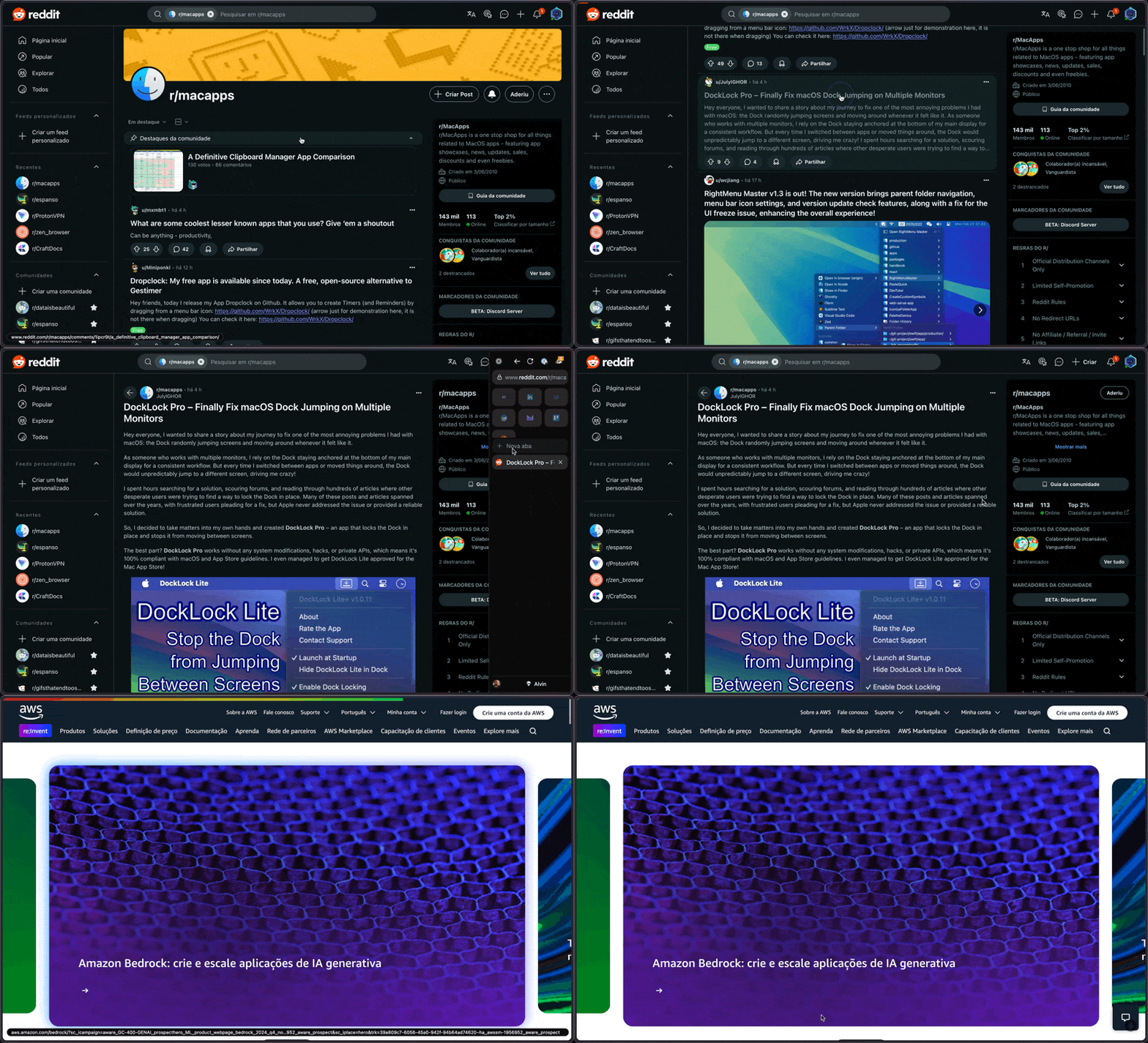
In the most ZEN setting of Zen (I know, very zen of me!), everything is literally hidden and you have to consciously move your cursor to break focus from what you’re doing. Opening a new tab with ⌘ + T is a pleasant surprise because it lets you navigate to a site, search the web, or browse your history. As shown below:
Yes, yes! Vertical Tabs
The chaos of horizontal tabs ends the moment you start using vertical tabs — there’s nothing like actually being able to read the name of a tab.
Zen organizes everything into a sleek sidebar (and you can choose which side: left or right!), where titles remain visible and navigation becomes far more intuitive — practically automatic for a brain that’s not great at juggling too many things at once. Beyond saving screen real estate, especially for widescreen monitors, this approach genuinely reduces the mental chaos of constantly switching between 500 open tabs.
Split view between sites
While not a feature I use very often, split view lets you look at two sites side by side at the same time. In the age of AI chatbots, it could be handy for comparing responses between ChatGPT and Gemini, for example.

Bottom line
- If you’re looking for a lightweight, secure, and distraction-free alternative for browsing the web, Zen could be an excellent choice;
- If you’re mourning the loss of the late Arc Browser on macOS (may the gods rest its soul!), Zen is also your place.
To download Zen, visit: https://zen-browser.app/
My favorite extensions for more focus and privacy (they work in both Zen and Firefox):
Customize your Zen Browser with Zen Mods: https://zen-browser.app/mods/
Contribute to the project on GitHub: https://github.com/zen-browser
